




Confused by your mobility scooter's dashboard? This guide breaks down all mobility scooter controls and features in simple terms to help you ride with confidence!
Table of contents
- The basic mobility scooter controls
- Dashboard display features explained
- Troubleshooting common dashboard issues
The basic mobility scooter controls
The dashboard of your mobility scooter might look like the cockpit of the Starship Enterprise at first glance, but once broken down, it's actually dead simple. Most scooters share the same fundamental controls, regardless of model.
The throttle system: your speed controller
The throttle lever is arguably the most important control on your mobility scooter. Usually found on the handlebars, this finger-operated doodad controls your speed. Think of it like a seesaw at the playground; the further you press, the nippier you'll go!
Key switch and power buttons
Your mobility scooter's key switch serves the same purpose as your car's ignition. It's your scooter's primary security feature, stopping cheeky opportunists from nicking off with your pride and joy. Most models feature a simple turn-key system. Remember that turning off your scooter when not in use isn't just good security — it prevents battery drain. Many users keep a spare key at home, as finding replacements can be a right faff! Nothing worse than being all dressed up for bingo with nowhere to go because your key's done a disappearing act, eh?
Battery indicator display: keeping an eye on your range
One of the most vital dashboard features is your battery indicator. This little gem shows how much juice you've got left, typically represented as a series of bars or a percentage. A fully-charged battery will show all bars illuminated or 100%, while fewer bars indicate less charge. Most scooters provide a “traffic light” system:
- Green: Plenty of charge remaining (Party on!)
- Yellow/amber: Medium charge, consider heading home soon (Like when your mobile shows 30% and you start getting a bit twitchy)
- Red: Low battery, immediate charging needed (Panic stations!)
Don't wait until you're in the red zone! Battery anxiety is real, and nobody wants to be stranded with a dead scooter outside Tesco. Talk about embarrassing! A good rule of thumb is to charge your scooter when the battery level drops below 20%. Better safe than sorry.
Dashboard display features explained
Modern mobility scooters have become increasingly sophisticated, with dashboard displays that would make James Bond's Q raise an approving eyebrow. Understanding what these displays are telling you ensures you'll get the most from your mobility aid.
LCD and LED displays: your information centre
Premium models often feature LCD (Liquid Crystal Display) or LED (Light Emitting Diode) screens that provide detailed information about your scooter's status. These screens typically show battery level, speed, distance travelled, and sometimes even the time or temperature. Fancy, eh? It's like having your own personal command centre! Have you ever noticed how some displays are clearer than others? That's because manufacturers have cottoned on to the fact that not all of us have the eyesight of an eagle. The better models use high-contrast screens that you can actually read without squinting like you're staring into the sun! [caption id="attachment_1168437" align="aligncenter" width="534"]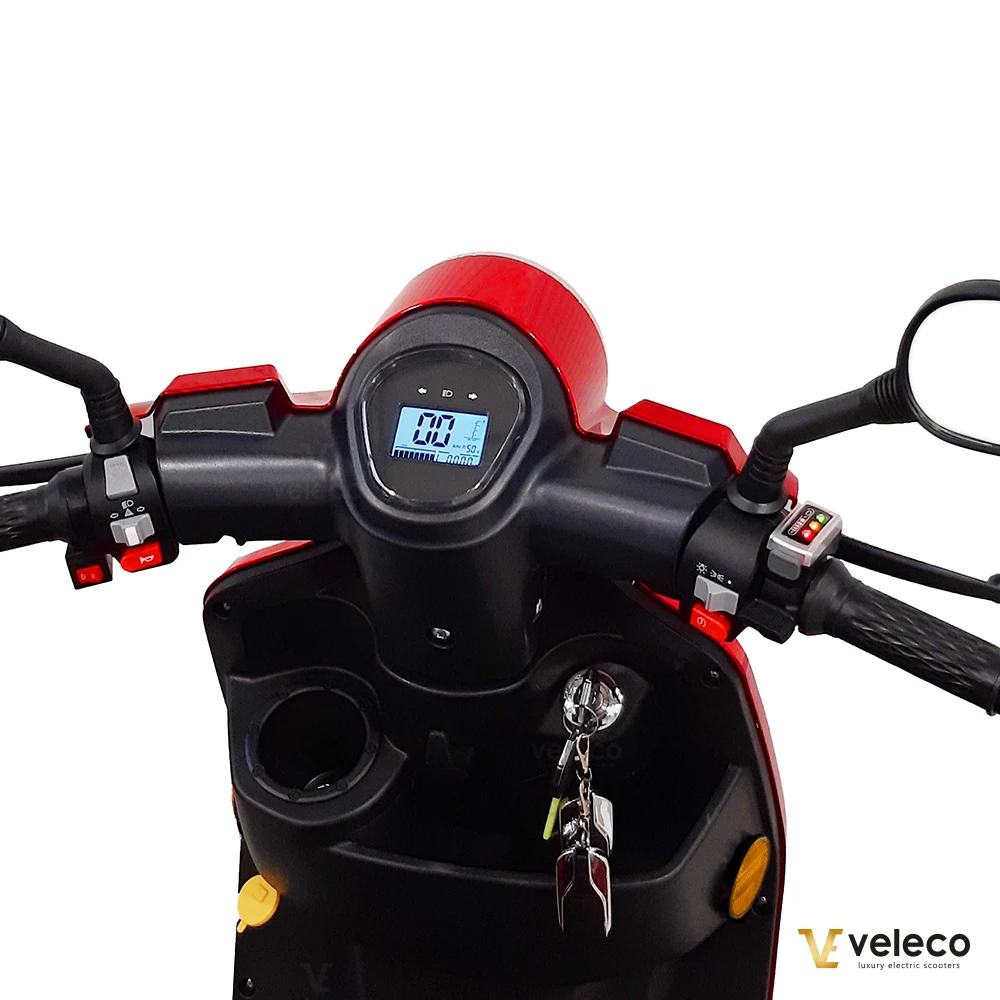 Mobility scooter LED controls[/caption]
Understanding battery indicators: percentages vs bars
Battery indicators come in different forms, but all serve the same purpose — showing you how much juice you've got left. Some displays use numerical percentages (100% down to 0%), while others use graphical bars or segments. What many new users don't realise (and I bet you a fiver this will save you some grief!) is that these indicators aren't always perfectly linear. A display might show 50% remaining but actually provide less than half your total range. This happens because battery discharge isn't perfectly consistent throughout the entire cycle. Bit sneaky, that!
Speed and distance information
Most digital displays show your current speed, typically in miles per hour (mph) or kilometres per hour (km/h). This helps you stay within safe limits, especially important when using your scooter in pedestrian areas. Many scooters also feature odometers that track:
- Total distance: The lifetime mileage of your scooter (impressive when you see how far you've actually travelled!)
- Trip distance: Distance travelled since last reset (handy for knowing how far you've gone on a single charge)
This information can be helpful for planning journeys and keeping track of maintenance intervals. Most manuals recommend service checks based on mileage or time periods, whichever comes first. Think of it like your car's MOT, but without the nail-biting worry about whether it'll pass!
Troubleshooting common dashboard issues
Even the most reliable mobility scooters occasionally experience dashboard issues. Knowing how to address common problems can save you time, money, and the frustration of having to call your more tech-savvy relatives for help (again).
When controls become unresponsive
If your dashboard controls suddenly stop responding, try these steps before calling for service or having a meltdown:
- Check the key switch position: Ensure it's fully in the “on” position (sounds obvious, but we've all done it!)
- Verify battery connection: Battery terminals should be clean and securely connected (no fuzzy green bits!)
- Test the battery charge: Even with some charge showing, voltage may be insufficient (sneaky!)
- Reset the controller: Turn the scooter off for 30 seconds, then restart (the universal fix for anything electronic!)
- Check for error codes: Note any flashing lights or display messages (your scooter's cry for help)
Many issues resolve with a simple power cycle (turning off and restarting). Think of it as rebooting your computer — it's often surprisingly effective! When all else fails, have you tried turning it off and on again? Works for computers, telly boxes, and mobility scooters alike!
Battery indicator troubleshooting
Battery indicators sometimes provide inaccurate readings, particularly on older scooters. Common issues include:
- Sudden drops from full to empty: Often indicates a calibration problem (like a fuel gauge that goes from full to empty after one short trip)
- Inconsistent readings: May suggest battery cell deterioration (time for new batteries, I'm afraid)
- “Full” reading despite short run time: Could indicate charging system problems (it's fibbing to you!)
When to seek professional help
While many dashboard issues can be resolved at home, certain symptoms warrant professional attention:
- Burning smells or visible damage (if it smells like a bonfire, it's not good!)
- Error codes that persist after basic troubleshooting (when your scooter is being stubborn)
- Erratic behaviour like random speed changes (scary stuff!)
- Complete display failure (the dreaded black screen of doom)
At Velobike we offer service plans that include regular maintenance and online support. Having a relationship with a trusted technician ensures prompt assistance when serious issues arise. It's a bit like having a good plumber's number saved in your phone — you might not need them often, but when you do, they're worth their weight in gold!
Conclusion
Understanding your mobility scooter's dashboard features is the key to maximising your independence and confidence while navigating daily life. By familiarising yourself with these controls — from basic speed and direction functions to fancy advanced features — you'll be able to make the most of your mobility aid with minimal fuss and bother. Remember, practice makes perfect! Don't hesitate to keep this guide handy as you get acquainted with your scooter, and consider scheduling a refresher session with your mobility equipment provider if you need additional support. With the knowledge you've gained today, you're well-equipped to enjoy the freedom and independence your mobility scooter was designed to provide. No more staring at the dashboard like it's written in hieroglyphics! Have questions about your specific model's dashboard? Feel free to contact us! And remember — there's no such thing as a silly question when it comes to operating your mobility scooter safely and confidently! We were all beginners once, weren't we? If you’re unsure what a particular symbol means, Veleco offers helpful visual guides in their YouTube videos, such as this one, which walks you through the dashboard step-by-step. You’ll also find more icon explanations across other videos in their series – perfect for getting to grips with your scooter’s features in a clear, visual way.
By Alex 25/06/2025 14:31:21
Veleco should be providing customers with enough technical information as possible so why are you not sending out the controller wiring diagrams and why won't you tell me how to switch speed to 15MPH ready for when i take my scooter abroad ? Let me guess....................... Profit. You want us to pay 90 pounds each time a engineer is sent out to fix something that most people given the right information can fix themselves. That's not a help system, it's sales and marketing. 39 pounds for a switch ? https://www.mobilitypower.co.uk/parts/?type=type_1&productid=5068 that is displayed as a bit of wire is a joke at that rip-off price. Delete away my friends, See you on Youtube and Facebook as potential customers have a right to know about trouble they may encounter.